LIRA‑FEM API allows you to control the VISOR system from other programs, for example from Microsoft Excel, using programming languages that support ActiveX or COM technology, such as Visual Basic Script, JavaScript, C#, Java, Visual Basic, Visual Basic.NET, C++, Delphi, etc.
Contents
Quick Start: example of using LIRA-FEM API in JavaScript
To use LIRA-FEM API, no special software is required other than a text editor. Let us illustrate this with a step-by-step guide.
- Open Notepad.
-
Paste the following text into it:
 //Function for creating a 6x3 m portal frame
            function CreatePortalFrame6x3m()
            {
                //Launch VISOR
                var App = new ActiveXObject("LiraFem.Application");
                //Create a new structural model in it:
                var Doc = App.CreateNewDocument();
                //Create and fill the node coordinates table:
                var kNodesTable = 2;
                var Nodes = Doc.AllTables.CreateNewItem(kNodesTable);
                var NodeCoords = [[1, 0.0, 0.0, 0.0], [2, 6.0, 0.0, 0.0], [3, 0.0, 0.0, 3.0], [4, 6.0, 0.0, 3.0]];
                Nodes.SetContents(NodeCoords);
                //Create and fill the elements table:
                var kElsTable = 3;
                var Els = Doc.AllTables.CreateNewItem(kElsTable);
                var ElTypeNodes = [[1, 10, "1, 3"], [2, 10, "2, 4"], [3, 10, "3, 4"]];
                Els.SetContents(ElTypeNodes);
                //Apply the tables to the structural model
                var strErrors1;
                var strErrors2;
                Nodes.Apply(strErrors1);
                Els.Apply(strErrors2);
            }
            //Call the function
            CreatePortalFrame6x3m();
- Select File --> Save, set the file type to All Files (*.*) and save the text on the desktop under the name
LiraFemApiTest.js. - Double-click the file
LiraFemApiTest.jsthat was just saved by Notepad.
When the file is executed, LIRA-FEM will launch and a new structural model will be created, consisting of 4 nodes and 3 elements:
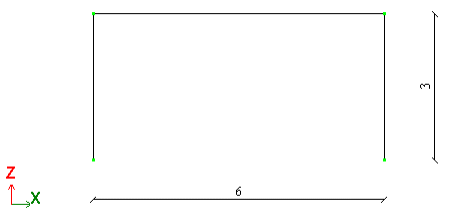
Knowing the LIRA-FEM API object model (described below), it is easy to write a program in JavaScript. However, compiled languages such as C# may prove more convenient, as they allow you to browse type information for LIRA-FEM API objects.
Creating a portal frame geometry, 6 m wide and 3 m high, in Visual Basic
Running this example will create the same frame as in the previous JavaScript example. To develop a program in Visual Basic for Applications, this example uses Microsoft Excel.
- Launch Microsoft Excel.
- Press
Alt+F11to open the VBA editor. - In the menu, select Tools --> References.
- In the References window, check the LIRA-FEM 2026 checkbox and click OK. You can now use LIRA-FEM API objects and browse their properties and methods in the Object Browser window (View --> Object Browser).
- Double-click Sheet1 in the Project window.
- In the window that opens, enter the following function and run it by pressing
F5.
' Function for creating a 6x3 m portal frame
Sub CreatePortalFrame6x3m()
    ' Launch VISOR
    Dim App As LiraApplication
    Set App = New LiraApplication

    ' Create a new structural model in it:
    Dim Doc As LiraDocument
    Set Doc = App.CreateNewDocument()

    ' Create and fill the node coordinates table
    ' (in this example the table is built as tab-delimited text):
    Dim Nodes As LiraTable
    Set Nodes = Doc.AllTables.CreateNewItem(LiraTableEnum.kLiraTable_Nodes_Coordinates)

    Dim NodeCoords As String
    NodeCoords = _
    "1" & vbTab & "0" & vbTab & "0" & vbTab & "0" & vbCrLf & _
    "2" & vbTab & "6" & vbTab & "0" & vbTab & "0" & vbCrLf & _
    "3" & vbTab & "0" & vbTab & "0" & vbTab & "3" & vbCrLf & _
    "4" & vbTab & "6" & vbTab & "0" & vbTab & "3"

    Nodes.SetContents (NodeCoords)

    ' Create and fill the elements table
    ' (in this example the table is built as tab-delimited text):
    Dim Els As LiraTable
    Set Els = Doc.AllTables.CreateNewItem(LiraTableEnum.kLiraTable_Elements_TypeAndNumbersOfNodes)
    Dim ElTypeNodes As String
    ElTypeNodes = _
    "1" & vbTab & "10" & vbTab & "1, 3" & vbCrLf & _
    "2" & vbTab & "10" & vbTab & "2, 4" & vbCrLf & _
    "3" & vbTab & "10" & vbTab & "3, 4"

    Els.SetContents (ElTypeNodes)

    ' Apply the tables to the structural model
    Dim Errs1 As String
    Nodes.Apply (Errs1)

    Dim Errs2 As String
    Els.Apply (Errs2)
End Sub
Creating a portal frame geometry, 6 m wide and 3 m high, in C#
Running this example will create the same frame as in the previous JavaScript example. To develop a program in C#, this example uses Microsoft Visual Studio. Its free version, Microsoft Visual Studio Community Edition, can be downloaded from microsoft.com.
- Launch Visual Studio.
-
Creating a new project.
Select File --> New --> Project, choose Visual C# Console App as the project type. Set the project Name to LiraFemApiTest, set the Location to your desktop and click OK.
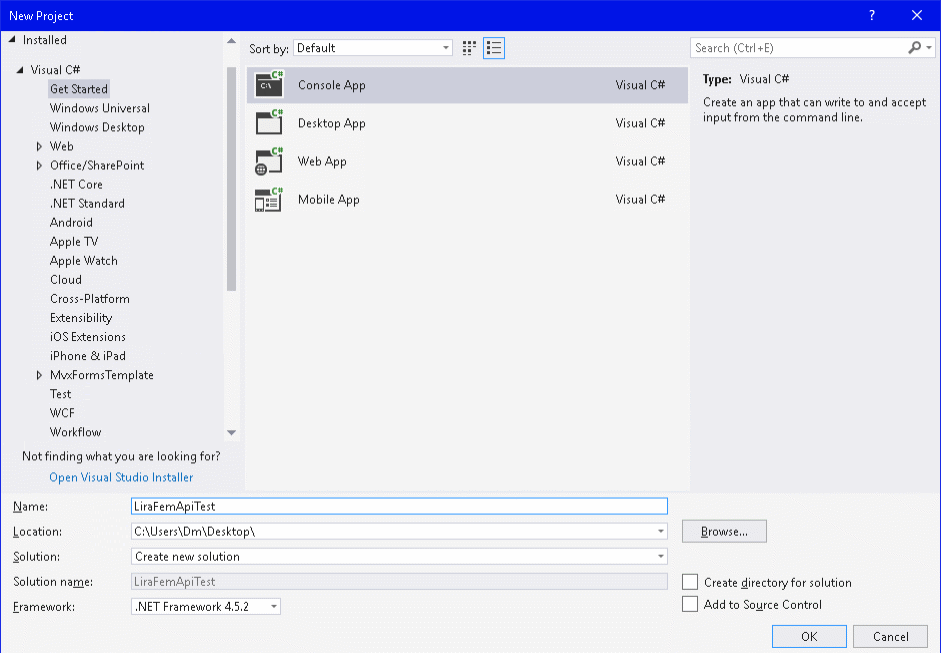 Fig.2
Fig.2 -
Adding a reference to the LIRA-FEM API type library.
Go to the Solution Explorer window and right-click the References item. In the context menu, select Add Reference... On the COM tab, select LIRA-FEM and click OK.
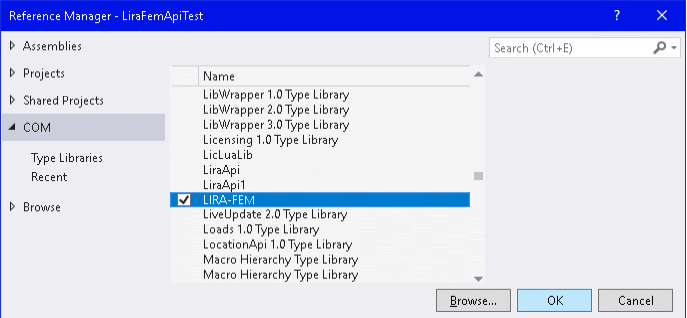 Fig.3
Fig.3If LIRA-FEM does not appear in the list, the LIRA-FEM API type library is not registered. Reinstall LIRA-FEM or run
x64\LiraFEM.exewith the/registerswitch as administrator. -
Adding the program body.
Open Program.cs and replace its contents with the following:
 using LiraFem;
        namespace LiraFemApiTest
        {
          class Program
          {
            static void CreatePortalFrame6x3m()
            {
              '//Launch VISOR
              LiraApplication App = new LiraApplication();
              '//Create a new structural model in it:
              LiraDocument Doc = App.CreateNewDocument();
              '//Create and fill the node coordinates table:
              LiraTable Nodes = Doc.AllTables.CreateNewItem(LiraTableEnum.kLiraTable_Nodes_Coordinates) as LiraTable;
              object NodeCoords = new object[4, 4] { { 1, 0.0, 0.0, 0.0 }, { 2, 6.0, 0.0, 0.0 }, { 3, 0.0, 0.0, 3.0 }, { 4, 6.0, 0.0, 3.0 } };
              Nodes.SetContents(NodeCoords);
              '//Create and fill the elements table:
              LiraTable Els = Doc.AllTables.CreateNewItem(LiraTableEnum.kLiraTable_Elements_TypeAndNumbersOfNodes) as LiraTable;
              object ElTypeNodes = new object[3, 3] { { 1, 10, "1, 3" }, { 2, 10, "2, 4" }, { 3, 10, "3, 4" } };
              Els.SetContents(ElTypeNodes);
              '//Apply the tables to the structural model
              Nodes.Apply(out string strErrors1);
              Els.Apply(out string strErrors2);
            }
            static void Main(string[] args)
            {
              '//Call the frame creation function
              CreatePortalFrame6x3m();
            }
          }
        }
Compiling the program.
Select Build --> Build Solution
-
Running the program.
Select Debug --> Start Debugging.
Running this example will launch LIRA-FEM and create a new structural model consisting of 4 nodes and 3 elements, identical to the one produced by the JavaScript code in the previous section.
LIRA-FEM API Object Model
This version of the API consists of five objects: application, document, input table, input table group, and measurement units. The application object corresponds to the main window of VISOR, the document corresponds to the VISOR structural model (*.lir file), and the input table and input table group correspond to the same-named objects in the user interface. The object hierarchy diagram is shown below:
LiraApplication	Application object
  ¦
  ¦--LiraDocument	Document or structural model
  ¦    ¦
  ¦    '--LiraTables	Input table group containing all input tables of the document
  ¦         ¦
  ¦         ¦--LiraTableGroup	Input table group of the document
  ¦         ¦    ¦
  ¦         '----'--LiraTable	Input table of the document
  ¦
  '--LiraMeasurementUnits	Measurement units management
Getting information on the properties and methods of each LIRA-FEM API object
Information on the properties and methods of each LIRA-FEM API object can be obtained in Visual Studio using the Object Browser tool.
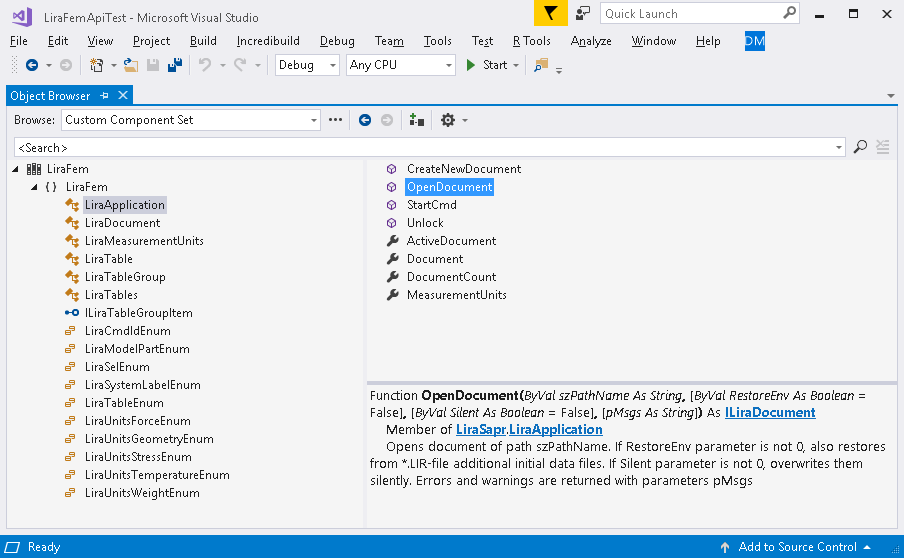
Object Browser provides a description of each property and method of LIRA-FEM API objects. Before programmatically filling input table contents, it is recommended to explore manual input through the user interface by selecting the Input Tables command on the Tools panel of the Advanced Editing tab.
If you find a mistake and want to inform us about it, select the mistake, then hold down the CTRL key and click ENTER.
Comments